
If you’re reading this, then we know two things to be true:
- You have a self-hosted website on WordPress (meaning you pay yearly web-hosting fees)
- You’re looking for ways to speed up your site while saving money on bandwidth with your web-host.
Correct? Most of are budget-conscious consumers. We want the best and we can’t always pay for the best. Sometimes the best comes in the form of expensive programmers that we don’t always have access to. (And I did recently hire a developer for some issues on my site!)
Sometimes we want to make sure that our sites are super duper fast and we don’t know how. And, who likes a slow website? Some web-host plans come with unlimited bandwidth, while others have a set amount, like 5GB. If you have a set amount of bandwidth, I’m going to tell you about a very special bandwidth-saving, Internet superstar called CloudFlare.
What is CloudFlare?
CloudFlare is a CDN (Content Delivery Network).
Um, what is a CDN?
If you want the Wikipedia definition definition, go ahead and check it out. If you’re lazy (like me), just keep on reading.
First let’s take a look at how traffic operates on a website not using a CDN. When someone types in a site’s web address (URL), they have to wait for the server hosting their site to deliver the content. So, if you’re waiting for your plane to arrive and decide to read a blog at the LAX airport, and that blog’s server is in London, you’ll have to wait until that data arrives from London. It could take a hot second.
Still with me?

Now, let’s take a look at how traffic operates on a website that DOES use a CDN. When someone types in the web address of a site using a CDN to deliver their content, the visitor receives data from the closest server in the network. So even if you’re looking at that same site in London (and let’s pretend they now have CDN support), the local server in Los Angeles will deliver the content to you…not a server in London.
Ok, so CloudFlare is a CDN, but what does that mean for me?
It means that visitors should now have access to your website in a much shorter time, because a local server is delivering your site’s content. On average, sites loads twice as fast for your visitors regardless of where they are located. Cloudflare has servers in 24 data centers around the world. It’s like having servers for your website in each of those 24 data centers versus 1 center.
Got it? Good.
Is that all CloudFlare can do for my site?
Always Online
Nope! Cloudflare has a feature that, in case your server goes offline (this happens to websites more frequently that you think) visitors can see a cached version of your site. It’s called “Always Online.”
SEO optimization
CloudFlare should help your SEO efforts because it helps speed up the delivery of content on your websites to your visitors. Google takes into account your site’s load time for search results, so any little boost helps!

Security
CloudFlare helps block fake bots from crawling your site, therefore reducing the load on your site at any given moment.
Rocket Loader
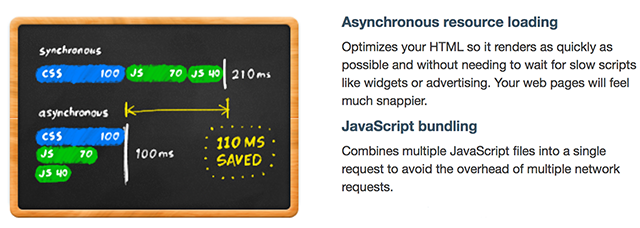
In nerd language, this “is a general-purpose asynchronous JavaScript loader coupled with a lightweight virtual browser which can safely run any JavaScript code after window.onload.” For the rest of us, what that means is that it turns a page which takes 12 seconds to load into a page which takes 2 seconds to load. I HIGHLY RECOMMEND this feature!

This sounds like it costs a ton of money. How much is it?
Unlike most things in life, Cloudflare is FREE! I’ve been using on my site since January. Of course, if you need extra juice, there are tiered plans that deliver added extras.
Is it easy to set up CloudFlare on my WordPress blog?
The process varies, depending on your web host. Some hosts support one-click CloudFlare installation.. It’s also quite simple to install manually. You need to point your domain’s nameservers to CloudFlare’s servers. In other words, CloudFlare will assign you two nameservers, which you will swap out with the nameservers assigned to you by your domain registrar.
The process is fairly simple. Here’s how to speed up and protect your site with Cloudflare if you’re hosting with GoDaddy:
Configuring CloudFlare on GoDaddy
1. Create your free account on CloudFlare.
2. Add a domain to your CloudFlare account.
3. CloudFlare will scan your records. After 60 seconds, CloudFlare will prompt you to enter the missing DNS records. Click ‘Continue Setup.’
4. Login to your GoDaddy dashboard and click on cPanel > Advanced DNS Zone Editor.
5. Locate the information CloudFlare needs (varies per installation) and update it in your CloudFlare account. Click “I’ve added all missing records, continue.”
6. Choose your price plan (I chose free!).

7. Cloudflare will assign you two nameservers. Go back into your cPanel and update your GoDaddy nameservers with the ones that CloudFlare provides you with.
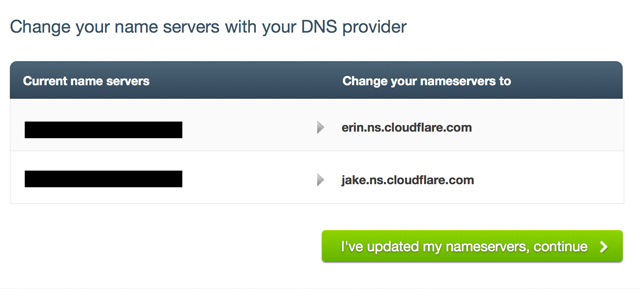

8. Wait 24 hours for the nameservers to propagate. That’s it!
After they’re done propagating, you should see something similar to the following:

I highly suggest taking the next few steps to ensure that the IP addresses of your visitors get tracked correctly, or else all your traffic will have CloudFlare’s IP address.
9. Install the CloudFlare CDN plugin to your WordPress dashboard.
10. Go to Plugins > CloudFlare.
11. Enter in your CloudFlare API key and the e-mail address you used to create your CloudFlare account.

Have any questions? Ask them in the comments below!
GoDaddy Managed WordPress is built from the ground up for maximum performance, security and ease of use.


Jackie says
It’s just crazy to me how advanced technology is getting and all the cool stuff they are coming out with. This sounds so awesome because I use Bluehost and I notice sometimes they are either super laggy or my site won’t load for like 5 minutes and then magically it works again.
Lisette says
Jackie, then I would definitely take advantage of CloudFlare. It looks like you have one of the web-hosts that provide one-click installations. I would do this immediately especially if you’re having the issues that you mentioned
Jackie says
Just wanted to follow up with this–I was able to do the one click installation which was super easy. Since then I haven’t noticed any slowing or downtime with my site. Thanks again!
chatan Vekariya says
Great post, I first heard about this from a online chat system for a rival web hosting company, it sounded to complex so I didn’t gig deeper, will definitely have a look at this for mysite. How much impact do you feel it has on serp ranking?
Randy says
Thanks for the tip! I’ve been looking for ways to speed up my site so this sounds like it’s worth a shot. To make sure I understand this, I would not be changing my hosting company? It sounds like this would be like a network of repeaters? Just wondering how much this will impact updates I make, etc.
Lisette says
Correct, you would not be changing your hosting company. What you are doing is changing the nameservers for your domain. Your web-hosting will remain untouched. I’m not sure what you mean by a network of repeaters?
It hasn’t affected any WordPress or plugin updates.
Randy says
Probably not the best choice of words. I meant that the site’s content would essentially be delivered to a server in closer proximity to you, resulting in speedier service. (I think I got that right).
You have some good content on your site. You are a very good talented writer; I enjoy your work. Take care….
chatan Vekariya says
Great article, I first heard about this from a rival hosting company but didn’t dig deeper as it sounded to complex. Out of interest how much influence does it have on serp?
Irfan Ullah says
Thank you very much for excellent article. I am bought domain name from namecheap and hosting from godaddy. If I want to implement cloudflare on my website how shall i do it ? & If I change name servers will my website be offline ?
Lisette says
You may want to speak to NameCheap for further details, as they can give you step-by-step instructions. My post was an overview.
James Thompson says
Had this site for nearly 5 years. As time goes by we are seeing more traffic and getting concerned about DOS attacks and excessive traffic.
We have noticed that GoDaddy seems to slow down at times. Hoping that CloudFlare will help make the site run smoother.
Thanks CloudFlare.
-James
VirtualBoxImages.com
http://VirtualBoxImages.com
Lisette says
I think you’ll certainly experience faster pageload times. Good luck!
Sandip Roy says
Lisette, thank you so much! Because of this guide, I could get my site to load in a flash, within 1-2 seconds. Just love you!
Keith says
Thanks for this great post! You mentioned “If you have a set amount of bandwidth,” that Cloudflare would be good to use but what if I have unlimited bandwidth? Would you still recommend using Cloudflare? My host is GoDaddy and it looks as though I have unlimited bandwidth. I’m physically located in Taiwan and notice occasional delays with homepage loads, so just wondering if, even though I have unlimited bandwidth, if Cloudflare would give me a boost in performance.
Lisette says
I found that it ESPECIALLY helped me when I was hosting with GoDaddy. Now that I’m on a web-host with an Nginx server I’ve found that I don’t really need it due to its strong caching. If most of your readers are outside of Taiwan you MUST use Cloudflare. Good luck!
Keith says
Thanks, most of my readers will be in Taiwan. I’ll give Cloudflare a test run anyhow to see if it helps.
Bikramjit Singh says
Hi,
It definitely improves the site speed.I was not aware of the plugin but now I have installed it after reading your article.But as you said that Clodflare shows cached version of website when servers are offline,actually it is not so.I have the error message several times when it doesn’t present cached version and displays that the website is offline.How can I manage that?
Deep M. says
So what kind of websites or applications do you guys use to test your speed with? I’ve signed up for Cloudfare but I’m not sure if my website is faster now. I found http://www.webpagetest.org and http://www.giftofspeed.com but I’m not sure the results on there is 100% correct. I’m also looking for more detailed reports. Thanks
Lisette says
I’ve used Web Page Test [dot] org with great results! The results from that site give you extremely detailed reports; you just have to know what you’re looking for. I’ll be honest, a lot of those results are a bit over my head, but if you hire an advanced WordPress developer they should be able to help you. (Search on Twitter for them!) Hope this helps!
Nitin says
Hi Lisette , i’m having hosting and domain name both from godaddy, and godaddy does n’t have any integration with cloudflare through app. so when i try to do it manually and trying to change the name servers godaddy does not allow to do so as you know for cloudflare to work we need different name server and need to replace it with original, so godaddy is not allowing its name servers to be changed and is uneditable. Is there any solution regarding this query ? if you are having must share with me and share via email to [email protected]
Andy says
Hi there,
GoDaddy does allow this.
Firstly, add your Domain name to your CloudFlare account. Cloudflare will scan your site first and get all the details it needs. After that, Cloudflare will tell you two nameservers, normally something like brad.cloudflare.com and sue.cloudflare.com.
Then, log into to your GoDaddy account, press your name (top right corner) then choose “My products”
Click the “+” next to Domains.
Click “Manage DNS” next to your domain name.
Then you will see “Nameservers” (the 3rd option down), click “Manage”.
On this screen, change from “Standard” to “Custom”.
Then click on “Enter custom nameservers »” and Enter the two nameservers given by Cloudflare (brad.cloudflare.com etc) – make sure that you put this in order of what Cloudflare gave you them in.
Press OK and then Save.
Wait five minutes, then go back to Cloudflare.
Now, there might be a button to “Rescan” or Cloudflare might of already seen that you have updated your nameservers and already activated it.
Either press Rescan, or if you don’t need to then Cloudflare will be active. Change the settings in Cloudflare to suite your needs.
Hope this helps,
Andy.
Simaran Singh says
That’s great tutorial! I am not a tech savy, earlier I was afraid to make such changes.
Just now, I have completed the steps, fingers crossed.
Hopefully, I will not get any error message!
Dawn Krueger says
Hopefully you are still replying to questions about this post even though it’s been a while… I tried cloudflare and loved it. However, my SEO guy says their free SSL isn’t ideal so we’ve started buying the SSL from GoDaddy too. After doing this, I’ve been unable to get the CDN to run smoothly. This is well beyond my knowledge base, I just folllow instructions on CDN and SSL setup.
Have you found that GoDaddy’s SSL doesn’t play nice with free Cloudflare CDN too? Or is there a way to work around this?
Thanks!!
Dawn
JB says
Will my visitor’s IP address get tracked correctly if I don’t install CloudFlare CDN plugin to my WordPress dashboard?
I want to use CloudFlare’s CDN but I don’t want to use their WordPress plugin. How can I manually ensure my visitors IP gets tracked correctly and not have CloudFlare’s IP address?
Aouf says
Very well written
suraj says
nice post rocket loader is great
Hariprasath says
mam i have one doubt, i did adding my site to cloudflare but after this i can access my mail option in my domail.
my mail option like “https://:2096” its worked before adding my site to cloudflare. but after this shows my webmail login but not working.
Larv says
Hey, on occasion I see a 404 website error when I arrive at this site. Just a heads up, best wishes
Amit says
Great Post Rocket Loader is best
Amit says
Thanks for this post now i can setup clourflare
Adnnan says
Everything sounds fine for me. But changing my own hosting provider’s name servers to a third party company looks a security glitch to me. Honestly when I use cloud flare’s name servers, indirectly I depend on their servers capabilities instead of mine (which is Go Daddy!).
What is your view on this Lisette?
Ap says
Number of companies and online business are depending on Cloudfront and there are much transparency and rules which I think will also make you feel OK with it.
By pointing to their name servers, your all the requests are first filtered through Cloud Front server providing your originating server more security. Also, Cloudfront have so many data centers that your content will be served as in the fastest ways possible to your visitors. Many of them are discussed here.